Showing posts with label HFM. Show all posts

June 11, 2017

HFM Data Audit (part 2)

In the previous post I detailed the mechanics of enabling and exporting data audits in HFM.  But what can you do with data once it's exported?

One option is to keep those .csv files for an arbitrary period of time.  If an issue arises you could search all those files for data of interest.  But you need some utility to search many files for text of interest and you could run into space issues which would require deleting deleting old data.

I prefer to import the data into a SQL database.  The data can be kept as long as needed and is easier to search.

With SQL server we can use the bcp utility to import the .csv files into a database table.  The table should match the fields we get in the .csv file.  The following is a sample create table statement to match the .csv file format.

CREATE TABLE [dbo].[AuditRecords](
[UserName]   [nvarchar](32) NULL,
[Activity]   [nvarchar](16) NULL,
[Timestamp]  [datetime] NULL,
[ServerName] [nvarchar](8) NULL,
[Scenario]   [nvarchar](16) NULL,
[Year]       [smallint] NULL,
[Period]     [nvarchar](3)  NULL,
[Entity]     [nvarchar](32) NULL,
[Value]      [nvarchar](16) NULL,
[Account]    [nvarchar](40) NULL,
[ICP]        [nvarchar](24) NULL,
[Custom1]    [nvarchar](32) NULL,
[Custom2]    [nvarchar](24) NULL,
[Custom3]    [nvarchar](8)  NULL,
[Custom4]    [nvarchar](32) NULL,
[DataValue]  [nvarchar](24) NULL
)

Now that we have a table to hold our data we need to import it.  The bcp utility uses an import format file to specify how to parse fields in the file being imported.  The specifications for the format file are kind of klunky which you can read about here.  But this is the format file I use:

10.0
16
1   SQLCHAR   0   64      ";"      1     UserName           SQL_Latin1_General_CP1_CI_AS
2   SQLCHAR   0   32      ";"      2     Activity           SQL_Latin1_General_CP1_CI_AS
3   SQLCHAR   0   24      ";"      3     Timestamp          ""
4   SQLCHAR   0   16      ";"      4     ServerName         SQL_Latin1_General_CP1_CI_AS
5   SQLCHAR   0   32      ";"      5     Scenario           SQL_Latin1_General_CP1_CI_AS
6   SQLCHAR   0   7       ";"      6     Year               ""
7   SQLCHAR   0   6       ";"      7     Period             SQL_Latin1_General_CP1_CI_AS
8   SQLCHAR   0   64      ";"      9     Entity             SQL_Latin1_General_CP1_CI_AS
9   SQLCHAR   0   32      ";"      10    Value              SQL_Latin1_General_CP1_CI_AS
10  SQLCHAR   0   80      ";"      11    Account            SQL_Latin1_General_CP1_CI_AS
11  SQLCHAR   0   48      ";"      12    ICP                SQL_Latin1_General_CP1_CI_AS
12  SQLCHAR   0   64      ";"      13    Custom1            SQL_Latin1_General_CP1_CI_AS
13  SQLCHAR   0   48      ";"      14    Custom2            SQL_Latin1_General_CP1_CI_AS
14  SQLCHAR   0   16      ";"      15    Custom3            SQL_Latin1_General_CP1_CI_AS
15  SQLCHAR   0   64      ";"      16    Custom4            SQL_Latin1_General_CP1_CI_AS
16  SQLCHAR   0   48      "\r\n"   17    DataValue          SQL_Latin1_General_CP1_CI_AS

Now we have a place to store our audit data and a way to import it.  The last step is to automate the whole process.  I run a PowerShell script daily that uses the AuditExport_cmd.exe to export yesterday's audit data to a .csv, and then import it into the database.  I also retain the .csv files in case something goes haywire with the bcp import.  I organize these retention folders by month and year in a parent folder named D:\LogArchives and periodically purge old retention folders.

The files created by the AuditExport utility have a maximum size of 17 Mb which may create more than one file per export.  The script needs the ability to import multiple files in a single batch.  The full script will export the data to a holding area, create a folder for retention if needed, then loop through the files in the holding area, import each with bcp into the database, then move file to the retaining folder.

One issue I ran into is that the data exported is in unicode format but bcp requires ASCII.  Also bcp runs on the SQL server.  I resolved this by importing the .csv file using Get-Content then exporting it using Out-File with the ASCII -encoding switch.  Since I have to run bcp on the SQL server the Out-File target is a share on the SQL server.  That share also has the bcp format file and a batch file to run the import.  This resolves the file format issue and keeps everything tidy on the SQL server.

The batch file on the SQL server is:

bcp DataAuditArchive.dbo.AuditRecords in T:\DataAudit\TempDataAudit.csv -U DataAudit_update -P Password123 -F 2 -f T:\DataAudit\DataAudit.fmt -e T:\DataAudit\DataAudit.err

Here my database is named DataAuditArchive and the table is AuditRecords.  The batch file, bcp format file, error file, and temporary copy of the .csv being imported are all in the T:\DataAudit folder.  This one line batch file gets called from a PowerShell script that runs on the HFM server.

I also want to save all of the output in case something goes wrong.  I do this by piping all of the results to a log file that gets saved in the monthly archive folder.  This gives an audit trail for the script file processing to allow troubleshooting.  If I find that one or more of the .csv files did not import I can import those manually from the retaining folder to ensure a complete audit record.

In the PowerShell script below the $Folder variable holds the name of the current months retaining folder which will house all of the .csv files for the month as well as the log file.  The $Working folder houses the initial export from the AuditExport utility.  The $BCPWorking folder is the share on the SQL Server that has the batch file, bcp import format, and the ASCII version of the .csv file currently being processed.

# Powershell script to archive and truncate data audit logs ending yesterday.
#

$Utility = 'D:\Oracle\Middleware\EPMSystem11R1\products\FinancialManagement\Utilities\HFMAuditExtractCmdLine_x64.exe'
$AppName = 'COMMA' # Name of the HFM Application
$Parms = ' -u D:\HFM.udl -a '+$AppName+' '  # UDL file and application name
$Data = ' -r '                              # flag to extract and truncate the data audit logs
#$Data = ' -x '                             # flag to extract and truncate the data audit logs
$Logs = 'D:\LogArchives\'                   # Parent folder for the log files
$TempFolder = 'Daily' # Store the dump from the HFMAuditExtract utility here
$BcpWorking = '\\SqlSvr\DataAudit'          # local folder on SQL server for BCP to use for import
$Start = ' -s 1/1/2013'                     # Arbitrary start date to make sure we get all previous data

$D = get-date

# New folder for each month that is named with the year and month
#
$Folder = $D.ToString('yyyy')+"_"+$D.ToString('MM')+$D.ToString('MMM')

# Capture everything through yesterday
#
$D = $D.AddDays(-1)
$End = ' -e '+$D.ToString('MM')+'/'+$D.ToString('dd')+'/'+$D.ToString('yyyy')

$Target = $Logs+$Folder                              # Destination for the logs
if (-not (test-path $Target)) { MkDir $Target }      # Create the destination folder if needed
$Working = $Logs+$TempFolder
$Output = ' -d '+$Working                            # Add the -d so this can be used as a parameter for the utility.

# Extract and truncate the task log
#   NOTE: the truncate task for data also does an extract
#
$CMD=$Utility+$Output+$Start+$End+$Parms+$Data       # Create the string to execute.  Path of utility and all parameters
echo $CMD                                            # Echo so we know what we did
invoke-expression $CMD                               # Execute the AuditExtract command line

# Process the file(s) that were created in the TempFolder
#
$TempFile = $BCPWorking + "\TempDataAudit_$AppName.csv"
$ScriptLog = $Target + '\BcpImport.log'
$BatchName = "T:\DataAudit\Import$AppName.cmd"

$AuditLogs = get-childitem $Working -filter "Data*$AppName*.csv"
foreach ($Log in $AuditLogs) {
    echo $Log.FullName

# Export the file be ANSI encoding because bcp has trouble with format files and unicode data files
#
    get-content $Log.FullName | out-file $TempFile -encoding ASCII

#   Run bcp to import the data
#
  $BcpResults = invoke-command -computername SqlSrv -scriptblock { Param($Bat) & cmd.exe /C $Bat } -ArgumentList $BatchName

# Move the file dated archive folder
#
  $MoveResults = Move-Item $Log.FullName $Target -passthru

# Delete the ASCII file we just imported
#
  if (test-path $TempFile) { del $TempFile }

# And save the results to the script log
#
  (' * * * ') | out-file $ScriptLog -append
  $Log.FullName | out-file $ScriptLog -append
  (' ') | out-file $ScriptLog -append
  $BcpResults | out-file $ScriptLog -append
  (' ') | out-file $ScriptLog -append
  $MoveResults | out-file $ScriptLog -append
}

This script is scheduled to run daily which keeps the DataAudit table in the HFM database lean and efficient.  The audit table becomes our source of truth unless the event happened today in which case we use the Data Audit tab in Workspace.

May 8, 2017

HFM Data Audit (part 1)

Don't you hate it when you're watching a TV show and it builds to a crecendo only to leave you with a "To be continued..." screen at the end.  You invest all that time just to get teased into watching next week.  I'm letting you know up front I'm not covering everything I intend to show about HFM data auditing.  This post will deal with the mechanics of configuring and exporting the data audits.  The next post will address what we can do with the exports to make them useful for reference.


We used to get reports from users in the field that somebody moved their cheese.  Fingers were pointed, accusations made, email storms erupted, tsunamis demolished fragile shore lines, meteors collided in the stratosphere, all cascading into a cacophony of dissonance that gradually decrecendoed until the next crisis wherein the entire process repeated.  The decision was made to enable data auditing in HFM to prevent such catastrophes.

The good thing about data auditing in HFM is that it records every transaction including data entry, data loads, data clears and data copies.  The bad thing about data auditing in HFM is that it records every transaction, so unless you are surgical about what gets audited you can generate an enormous log.


Data auditing is configured at the intersection Scenario and Account.  For Scenarios the field Enable Data Audit has to be set to Y (yes) or O (override) instead of the default of N.  Y indicates that everything in that scenario gets audited, O indicates the auditing is optional and will defer to the configuration of the Account dimension.  Unless you have a small Account dimension you should configure the audited scenarios with the O.  Only audit scenarios where users make changes.


For the Accounts dimension change the Enable Data Audit field to Y for the accounts to be audited in Scenarios configured with O.  Again, only audit accounts where users make changes.  There is no value to auditing accounts that are calculated.  FDQM it has its own audit trail so if you use that to load data you should try to omit accounts that FDQM loads and just audit accounts where users manually submit or clear data.  In our case we knew there were specific areas that generated problems so we focused on accounts in those areas.


The audit data can be viewed in workspace by selecting Navigate > Administer > Consolidation Administration > Audit > Data Audit.  The resulting data can be filtered by any of the POV fields.  The data grid will show who did it, what they did, when they did it, where they did it, the POV of the intersection touched, and the value assigned.

The data audit details are in the table <AppName>_DataAudit.  The HFM administrators guide advises that the number of records in the table be less than 500,000 to avoid degrading performance.  For a large company half a million records can be added in an afternoon of data loads during month end close.

The audit data can be exported and truncated from the Consolidation Administration tab.  But a better solution is to find an automated way of exporting and truncating the table.  In the EPMSystem11R1\products\FinancialManagement\Utilities folder is the command line utility HFMAuditExtractCmdLine.exe.  This utility has switches to truncate and/or extract the data and task audit logs for a consolidation application.  Data can be extracted or truncated within a specified date range and extracted to any available location.  Note that the utility requires a Universal Data Link (.udl) file which must be configured with the connection string to the HFM database along with credentials that have at least db_datawriter access to the database.


The command line to extract the data is pretty straightforward.  Assign the destination folder, full path to the .udl file, specify the application, delimiter, start, and end dates, and the switches for which operations to perform.  One quirk I found, at least with the 64-bit version of the utility for 11.1.2.2.500, is that -k and -r switches both export and truncate the data instead of just truncating.

HFMAuditExtractCmdLine_x64 -d c:\Extracts -u C:\MyHFM.udl -a Comma -s 2017/01/01 -e 2017/02/29 -r

This example command will extract the data to the C:\Extracts folder, use the C:\MyHFM.udl file to connect to the HFM database and the Comma application, then extract and truncate all of the data audit records recorded between January an February of 2017.  Note that in the example I'm using the default delimiter which is the semicolon.  If you specify a delimiter it must be a printable character since there is a known issue with the command line utility which can't process [Tab] as a delimiter.

The command line utility is available up to version 11.1.2.3, but is not bundled with version 11.1.2.4 and above.  However the format of the table has not changed between versions so the utility will still work.  Oracle patch 9976978 can be downloaded to get an older version of the utility.  You can also get the latest PSU for a previous version which will have a copy of the utility in the files\products\FinancialManagement\Utilities folder.

The utility can be configured in a batch file or run directly from the Task Scheduler.  But we still need to adjust the end date.  In the next post I will detail sample code that exports the data to a .csv file, adjusting for the date, and imports that .csv file into a database.  I use this as a nightly scheduled process to keep the HFM database lean and preserve the audit data for forensic examination.

February 14, 2017

More Trouble with Temp Files

The title of this post kind of gives away the plot before I even start the story.  But it does give me a chance to use this picture in my blog.


We update our HFM application metadata monthly.  We first deploy the changes in our development environment and test any required changes to member lists, rules, etc.  After the metadata is loaded into EPMA the HFM application has to be redeployed.  In this case the redeploy failed.  The message displayed was almost as useless as a tribble:

The custom error module does not recognize this error.
This is like something you would find on the DailyWTF, an error that tells you nothing more than it's an error.

In the Consolidation Administration tab was an error message that was a little more descriptive, but equally unenlightening.

Could not determine wsdl ports.
Searching the Oracle knowledge base and binggoolging turned up nothing useful.  In cases dealing with workspace we sometimes resolve unusual issues by clearing the browser cache and reopening the browser, but that didn't help.

The deployment failed at 6% which normally indicates a problem with EPMA.  Everything on the EPMA server looked normal and there were no obvious errors in the logs.  We tried restarting just the EPMA services which did not help.  We then restarted all the EPM services to close all connections, flush java caches, and try to clear up whatever was causing the error, but the redeploy still failed at the same step.

Then I checked the HFM server which in our case is a different host than EPMA.  The C: drive was almost full.  Because this is a dev environment I don't have any alerts configured so I didn't have advance warning of the problem.

Analysis

A handy tool for finding disk hogs is the sysinternals du utility.  It runs from the command line but the syntax is easy and you can use keyboard shortcuts to quickly drill down to find the problem folders.

While DU can scan a whole drive and find the hogging subfolders this can take a bit of time.  My strategy is to check just one level use the -L 1 paramenter, then drill down from there one level at a time.  This is usually a quicker way of finding the offending folder.

Here I look in the C:\Users folder because I suspect the problem is one of the profiles.  Clearly the problem is the profile taking over 5Gb with an account that starts with r and ends with v.

Using DOS shortcuts I hit the up arrow key to repeat the last command, add the backslash, type an [r] to start the username, use the [Tab] key to auto-fill the rest of the name, and press [Enter] to see results for the next level down.  Repeat this technique until you find the problem folder.

In this case it was the user profile of the service account that runs the HFM and other EPM servcies.  In the AppData\Local\Temp folder there were a bunch of temp files, many of them tens of megs in size.  After deleting all the temp files from previous years we freed up 5Gb of drive space and the deployment succeeded.


Even though this processing is handled by EPMA, there is still data being written to the HFM server.  Presumably this is so HFM has something to process once its turn in the deployment comes.

Conclusion

This is another episode where temp files don't get cleaned up after execution.  Also note that the .tmp files use the convention of a 4 hex digit as part of the name.  Had we not run out of drive space it is conceivable we would have run into name collision like we did with the Permanent Temporary Files.

This has become another task during the monthly maintenance where logs and other items get purged or truncated to keep the logs manageable and drive space clear.

What is curious in all of this is why aren't these temp files cleaned up as a matter of course?  While it makes sense to keep temp files around for troubleshooting if a process fails, surely whatever process generates these things could have a final step of cleaning up its droppings after it receives a success notice.  Even children know enough to clean up after their dog.


January 25, 2017

FDQM scripting errors

Financial Data Quality Management (FDQM) is used to move data into the EPM financial applications HFM and Essbase.  It has powerful and flexible facilities for parsing flat files for import.  It can also use scripts to import data, define conditional mappings, or that get triggered at certain events.  The scripts have a .uss extension but use vbScript as the language.  Scripts are stored in the \Data\Scripts folder of the application and can be edited directly or using the FDM Workbench.

Because we have the full power of vbScript there is a lot of sophisticated processing available.  We can also leverage ADO database connections to pull data from any accessible relational data source.

This post focuses on import scripts.  In a recent project I ran into two issues that gave error messages, one of which was not particularly useful and the solution undocumented.

The situation is a working script that pulls data from a SQL datamart for a single entity.  The script generates a SQL command that includes a WHERE clause which uses the FDQM POV to define the location.  The customer wanted another copy of the script to pull data for all entities, then use that new script as the import format for the parent location.

Easy-peasy.  We copy the script, rename it, update our WHERE clause to pull for all entities, create another import format that uses the new script, and assign that format to our parent location.  In this case the initial script was called HFMSQL and our edited copy is called HFMSQL_ALL.  (I'm won't detail the mechanics of managing the import formats and locations since that is well documented.)

Error 1

The first error is reasonably descriptive.


Error: An error occurred importing the file.
Detail: Script filename [HFMSQL_ALL.uss] is different from
the procedure name entered in the script file

The first line of an import script defines a function.  That function has to have the same name as the import script file.

The error was caused by keeping the original the function name HFMSQL for the new HFMSQLscript HFMSQL_ALL.

Making the function name match the script name resolves the error.

Error 2

This is the error that gave me fits.


Error: Import failed. Invalid data or Empty content.

This looks like we aren't getting any data out of our edited query.  A handy troubleshooting tool is to use the vbScript FileSystemObject to dump information to a text file.

Create a FileSystemObject and then use the CreateTextFile method to make the debug file.  The parameter True indicates that we will overwrite an existing file.

Later in the script I write the SQL query string which is generated by the script to the debug file

The WriteLine method writes the SQL string to the debug file.  The next step sends the SQL string to the SQL connection and pulls it into the record set that gets processed later in the script.

I re-ran the import, then opened the debug file and copied the SQL query and ran that directly on the SQL server.  The query returned the records we expected.  So I don't have empty content, but how could the data be invalid?

Just to be sure I added similar debugging statements to the original working script and adjusted the new script to pull from just the location where the working script was attached.  The SQL statements that got generated were identical and running them directly on the SQL server returned the same results set.

Sometimes it helps to bring in a fresh pair of eyes so I worked with an associate who double checked my findings.  We then created another copy of the working script and ran into the issue in Error 1.  While fixing that error when he suggested searching for the original script name.  At the bottom of the script we found this:


This is a standard practice most sample scripts you find.  After the load completes you set the ActionType and ActionValue which gives the success message on completion.  But note the last line which sets the function to return True to signal a successful completion to FDQM.  This variable name has to match the function name which has to match the script name.

So this is another easy fix but it took a while to resolve, partly because we weren't paying attention when we copied the scripts, but mostly because the error message does not indicate the real source of the problem.  Hopefully this post can save someone trouble next time they run into this error.


April 21, 2016

Permanent temporary files

We update the metadata for our HFM applications at least once per month.  Before updating the shared dimension library and deploying the production application we test all of the changes in our development environment.

During a recent test the deployment in development failed.  Usually a failure is during the deployment phase due to some misconfiguration in the new dimension members.  In this case the deployment failed during the initial export with the error message:

Detail : An error was encountered while executing the Application Export:  An error was encountered during export: The file exists.

Oracle Doc ID 1639083.1 shows the same error for Planning applications.  Because Planning and HFM both use the EPMA dimension and application libraries you can often extrapolate from the Planning solutions to solve HFM problems.

The article says the <SystemDrive>:\Windows\temp folder is full and the solution is to delete files from that directory.  But my C:\ drive wasn't full and there weren't many files in the \windows\temp directory.

Troubleshooting

According to the Oracle doc we were running out of file names.  But where?

The deployment is performed by EPMA and it fails before HFM starts its processing.  (Years ago an Oracle support engineer told me that during a deployment all the processing up to 20% is EPMA and after that it is HFM.  At any rate we don't get past the export so I know definitively that the problem was with EPMA.)

SysInternals has a bunch of powerful utilities for Windows systems.  I've been using these utilities since the WindowsNT days.  The author of the utilities, Mark Russinovich, was eventually hired as a technical fellow at Microsoft and is now the CTO of Azure.  He's one of the smartest guys you can follow and he's an engaging and articulate speaker if you see him give a presentation.

In this case I had to monitor the processes on the EPMA server to see what caused the failure.  From live.sysinternals.com I downloaded ProcMon and ran it on the EPMA server.  ProcMon will monitor everything on the server so you need to apply filters to isolate the information you want.  A handy technique is to let it capture for a few seconds, then stop the monitor, right-click any processes you don't care about such as explorer.exe, svchost.exe, your anti-virus software, etc and select Exclude.  This adds the exclusions to the current filter.  Repeat until you only have the handful of processes of interest, in this case anything related to EPMA.  Then clear the log, start the capture, and redeploy.


Once the deployment failed I stopped the capture and saved the results.  ProcMon captures access to the file system and registry as well as network and process thread events, so I removed everything except file system requests.  I didn't have to scroll down very far to see thousands of events from EPMA_Server.exe with a result of NAME COLLISION.  These are all in the AppData\Local\Temp directory of the user account under which the services run.


The files are named tmpXXXX.tmp where XXXX is appears to be a random set of 4 hex digits.  Some of these files are created during application deployment.  We do a nightly LCM export of EPMA for backup purposes and which also creates .tmp files.  Some of the .tmp files are XML properties of the applications and some are binary files.  Since this is our dev environment and we have many test applications, do regular deployments of HFM applications, and export EPMA nightly we ran out of the 65,535 possible names for the .tmp files.

Solution

As the Oracle doc implies, we just delete the .tmp files.  They are, after all, just temporary files in a temp directory.  Why Oracle doesn't delete them automatically or overwrite existing files instead of throwing an error is a topic for philosophers and software engineers to resolve.

Another location where files accumulate is \Oracle\Middleware\user_projects\epmsystem\tmp.  That folder holds temp files for shared dimension library updates, diagnostic framework, and web logic, among others.  Beneath this \tmp folder is a folder named EPMA that holds temp XML files with all properties of all dimensions in redeployed applications as well as temp ADS files created during LCM exports from EPMA.  Also beneath the \tmp folder is a folder oracle\tmp which has subfolders holding log files generated during HFM data syncs.

For us that issue came to light since we not only do nightly LCM exports of EPMA, we also have reporting applications that are updated nightly.  We use HFM taskflows to update the metadata, redeploy the applications, and run datasyncs to load data.  Because the .xml files generated during the redeploy can be large and we went through many rounds of testing, the data drive eventually filled to capacity which killed all activity on our EPMA server.

Our solution is regular maintenance to delete temp files in both the AppData\Local\Temp and the epmsystem\tmp folders on servers running the Hyperion EPMA Server service.  This task is easy enough to complete manually that I have not created an automated process for it.

But it is curious that Oracle doesn't automatically delete, or provide facilities for automatically deleting, these temporary files.  If you know of anything built into the products to address these temporary files please share that information in the comments below.

March 24, 2016

Automating HFM form updates

We have lots of different forms in our HFM applications.  Many of these are used for reporting and analysis on various aspects of the income statement, balance sheet, and cash flow statements.  We also have a variety of supplemental forms for tax, human resources, and other business purposes.

http://xkcd.com/1566/

For these forms the year on the point of view should be the current fiscal year.  Although this can be adjusted by the users it is more convenient if the default POV is the current year.

We have over 100 such forms.  After we complete year-end close and roll forward to the next fiscal year all of these forms need to be adjusted to update the default POV for the new year.  It is a tedious task to do this by hand.

Strategy

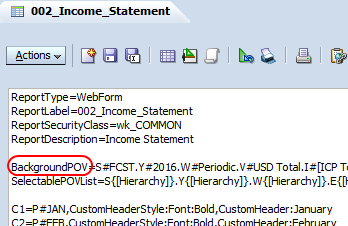
There is a graphical interface for designing and editing forms.  This gives a friendly way of representing the script that is used to define the dimensions, members, and format of the form.  From the editor there is a button on the Actions bar that lets you edit the script directly.


Notice the line that starts with BackgroundPOV=.  This defines the default POV for the form.  So while one option is to use the GUI tools to update the POV, it is often quicker to edit the script and save the update.


Because the form is defined in a script, the script is what gets saved when we do LCM exports.  The relative path is ..\resource\Forms\Web Forms\.  Beneath that are the folders and forms as defined in workspace.  Each form is saved in an .xml file, but the content of the .xml file is primarily the script that we see in workspace.


Our strategy is to export the forms, edit the .xml files to update the year in the BackgroundPOV, then use LCM import the updated forms.

Solution

The key is generating a script to automate the change.  Powershell makes it easy to traverse a folder and subfolders for documents.  In this case the filter is easy because the forms all reside beneath a single parent folder and are all defined in .xml files.

We open each file in turn and look for the BackgroundPOV line.  The POV is defined using the standard HFM scripting style of <dimension>#<value> with periods separating the dimension definitions.  So we search for the string .Y# then use a simple substring to find the year value and replace it with the new value.

The sample script is:

# PoSh script to update POV in the web forms in HFM application with the new year
#    We use the LCM export of the forms for the application.  The exports include the
#    report script in the .xml files.  We search for the BackgroundPOV line and replace
#    the Y# value with the new year.
#
#    I'm assuming that the current year is correct and so we increment the year.
#    We could use a similar techinique and replace the year with a static value
#

# All of the folders that have the web data forms that have to be updated
[array]$Dirs = #Folder 1, `
            #Folder 2, `
               # ...      `
            #Last folder

foreach ($D in $Dirs) {

    # Get all of the .xml files in the current web form folder
    #
    $Files = Get-ChildItem -path $D -filter '*.xml'
 
    foreach ($FN in $Files) {
        $FN

        # Read and loop through the .xml file
        #
        $Script = Get-Content $FN.FullName
        for ($i=0; $i -le $Script.Length; $i++) {

            # Found the line we need to change
            #
            if ($Script[$i] -match 'BackgroundPOV') {
                $L = $Script[$i]

                # Get the 4 digit year.  POV is standard nomencalture so search for .Y#
                #
                $Year = $L.Substring($L.IndexOf('.Y#')+3,4)

                # Increment the year.  Note we convert to integer then back to string
                #
                [string]$New = [int]$Year + 1

                # Replace the year in the script line
                #
                $Script[$i] = $L.Replace($Year,$New)

                # There is only one line per file so exit the for loop
                #
                $i = $Script.length
            }
        }

        # Overwrite the old file with the new
        #
        $Script | out-file $FN.FullName
    }
}

Here are some things to note about the script.  I force the list of folders into an array even if I need just one folder; this gives the script flexibility to use any number of folders.  I hard code the path for the forms but that could be replaced with a prompt or command line parameter.  I assume that the current year in the form is correct and increment the value, but you can replace that with a static string if you need to updated forms with a specific value.  Also, I did not use the -Recurse option in the Get-ChildItem commandlet, but this can be used to traverse all subfolders in the -Path to process all of the .xml files in all directories.  And it is good to have a backup, so before you run the script either do two LCM exports or work from a copy so you can return to a known good state if things go belly up.

I assume you know how to export and import using LCM so I don't describe that process.  My goal is detailing the strategy for doing the mass update and showing the sample script that you can customize for your needs.  The text files generated by LCM lend themselves to scripting techniques like this if you have similar issues with other products.  And while I'm personally a fan of PowerShell for scripted solutions, there are other scripting tools available if your comforts lie elsewhere.

March 15, 2016

SmartView and XML

Our user reported the following error while using SmartView:

XML Load Error: Invalid xml declaration
Fortunately this happened after all data had been submitted for month-end close, so I had some time to research the problem.  Unfortunately it happened on Super Bowl Sunday, so there was still a time crunch because nachos wait for no man.  To make the situation weirder the user had been working fine when Excel crashed and after restarting Excel she couldn't log back in.

The error says it is a problem with XML so I started there.  SmartView keeps a few .xml files in the cfg folder.  Properties.xml is just a template for the proprties.xml file that lives in the user profile at AppData\Roaming\Oracle\SmartView.  That file holds the default URL for connecting to the SmartView provider website and the list of previously used URLs.  We tried replacing the user's properties.xml file with the default .xml we distribute to force users to connect to the correct URL.  That didn't help.

SmartView also uses some .xml files on the server end in the folder Oracle\Middleware\EPMSystem11R1\products\FinancialManagement\Web\HFMOfficeProvider\TaskList_Config.  I compared those against our development environment and the files checked out.

I searched the Oracle knowledge base but there isn't much information there.  I found one article which indicated this might be a problem with the user provisioning.  I removed the user account from all of the groups, saved it, then added it back to the groups.  But she got the same error when logging in from SmartView.

We use Active Directory domain accounts for access to Hyperion and Essbase so users don't have to remember or sync multiple passwords for multiple accounts.  In desperation we provisioned a native directory account and gave it the same access as the problem Active Directory account.  This provided a temporary work around but what about a permanent solution?

Oracle support provided the answer.  There is a table in the HFM database name <appname>_USERPARMS which holds parameters for each user, where <appname> is the name of the HFM application..  The parameters are stored as hex blobs and some of those blobs are in XML format.  If you see any entry starting with 0x3C that could be the start of an XML entry since 3C is the hex value for the < character which is the first character of any XML string.  The speculation is that when Excel crashed it caused one of these entries to be corrupted.


This also explains why creating a native directory account worked around the issue.  The native account is recognized as a different account and had a different value in the Username field.

Running the command:

DELETE FROM <appname>_USERPARAMS WHERE Username LIKE '<youruser>%'

removed all of the entries for the problem user, replacing <appname> with the name of the HFM application and <youruser> with the username having problems.  The entries got reset to their defaults on the next logon and resolved the user's login issue from SmartView.

Like the EAL and IIS issue, there are other errors that can be resolved with the same technique.  Doc ID 1584266.1 shows that deleting the entries for a user will resolve the error:
Unknown Error in HFMProviderObject reference not set to an instance of an object.

Doc ID 1533030.1 shows that deleting all entries for the user or some specific parameters will resolve the error:
The parameter is incorrect. Error Reference Number: {319B0CB1-3B2D-4963-BB8F-025D2440A15D}

Doc ID 1371461.1 shows that deleting specific keys will resolve the error:
There are no rows to display for the current grid definition

Doc ID 1515682.1 shows that deleting specific keys will resolve the error:
An error has occurred. Please contact your administrator.
Error Number:13
Error Description:Type mismatch
Error Source:Microsoft VBScript runtime error
Page On which Error Occurred:/hfm/mbrsel/mbrsel.asp

All of these problems involve some sort of corruption of one or more of the parameters held in the USERPARMS table; the solution is to remove the offending parameters and let HFM recreate them with the default values.  If someone was really ambitious they could translate the blob from hex to ASCII, determine what was missing, correct the string, translate it back into a hex blob, and update the BLOBData field for that ParameterKey.  But I'm not that ambitious and the quickest path is the supported solution of deleting the records and getting on with your life.

January 26, 2016

EAL and IIS

Oracle Essbase Analytics Link for HFM (EAL) is a pretty cool product.  We use it to move data from HFM to Essbase over EAL bridges.  The EAL bridge defines the source and target applications as well as configuration parameters for the data transfer.  Data can be moved on demand but we can also create a transparent bridge which lets us have near real-time replication of our HFM data into Essbase.

https://www.pinterest.com/pin/100416266663858663/

This comes in handy for reporting purposes.  We use HFM to do the translations and consolidations of our financials and leverage Essbase for reporting.  During the close cycle we don't have to sacrifice resources needed for consolidations with reporting activity.  In addition we can leverage the Essbase calculation engine to add other accounts or dynamic scenarios that we use for reporting but don't need for normal close calculations.  So we let Essbase do the calculations for prior year or budget-to-actual comparisons so that HFM and Financial Reporting don't have to do it.

You can also do some management of the metadata during the transfer.  You can filter dimensions so you only bring over the members you need in Essbase.  You can rename dimensions which can be handy if you have legacy spreadsheets or reports that use different names.  You can also migrate security so that the security on the Essbase application matches the HFM application.

Product description

EAL has a few moving parts.  There is the EAL service (Hyperion Essbase Analytics Link Server - Web Application) that oversees and manages operations.  The Data Synchronization Service (Hyperion Essbase Analytics Link - DSS) is responsible for moving data from HFM to Essbase and does the bulk of the work.  (Usually these two services are installed on a server other than the HFM or Essbase servers so as to not impede performance of other HFM and Essbase activity).  The Financial Management Connector lives on one HFM server to facilitate communication with the HFM applications.  And there is an add-in for Essbase Administration Server (EAS) that is used to configure all of the pieces and create bridges to move data from HFM to Essbase.

There are also some back-end pieces these services need.  A RDBMS database is needed to store the configuration information which can be on either Oracle or MS SQL server.  The Financial Management Connector uses IIS to host a website named livelink that provides access the .dlls required to move the data.  If you are running HFM on Windows 2008 or later then you have to enable IIS 6 compatibility.

Problem and Solution

Our situation was a patch for EAL that was rolled back partway through the install.  When patching EAL the current version has to be completely uninstalled before the new version is installed.  Because the configuration data is held in the database that information is retained so the upgrades are usually painless.

After the rollback we tried to refresh the metadata for an existing bridge.  We use dynamic accounts so I deleted the existing region for the HFM application and created a new region to enable the dynamic accounts.  But when I tried to create the new region I saw this message in the EAS status window:

Data Synchronization Server database cannot be created

This points an an issue with the DSS.  After confirming that DSS was correctly configured and the database was valid we checked the dss.log file and saw:

[23 Nov 2015 16:21:39] [dbmgr] ERROR: HR#07722: Cube 'main_cube' of application 'MyApp' is not registered.
[23 Nov 2015 16:21:51] [dbmgr] ERROR: last message repeated 1 more time
[23 Nov 2015 16:21:51] [dbmgr] WARN : HR#01566: can't open directory "D:\oracle\product\EssbaseAnalyticsLink\oem\hfm\MyApp\Default": The system cannot find the path specified. [3]

But the path did exist.  We tried adjusting permissions but that was no help.  So we checked the eal.log which showed:

[2015-Nov-23 16:24:08] java.lang.OutOfMemoryError Exception [HR#09746]: in jni_GetStringUTFChars (src/jvm/api/jni/jni.c:963).
[2015-Nov-23 16:24:08] Attempting to allocate 256M bytes
[2015-Nov-23 16:24:08] There is insufficient native memory for the Java
[2015-Nov-23 16:24:08] Runtime Environment to continue.
[2015-Nov-23 16:24:08] Possible reasons:
[2015-Nov-23 16:24:08] The system is out of physical RAM or swap space
[2015-Nov-23 16:24:08] In 32 bit mode, the process size limit was hit
[2015-Nov-23 16:24:08] Possible solutions:
[2015-Nov-23 16:24:08] Reduce memory load on the system
[2015-Nov-23 16:24:08] Increase physical memory or swap space
[2015-Nov-23 16:24:08] Check if swap backing store is full
[2015-Nov-23 16:24:08] Use 64 bit Java on a 64 bit OS
[2015-Nov-23 16:24:08] Decrease Java heap size (-Xmx/-Xms)
[2015-Nov-23 16:24:08] Decrease number of Java threads
[2015-Nov-23 16:24:08] Decrease Java thread stack sizes (-Xss)
[2015-Nov-23 16:24:08] Disable compressed references (-XXcompressedRefs=false)

This looked like it was a memory issue so we tried changing some of the options in the EAL configuration tool.  There are also some java heap options in the registry at HKLM\SYSTEM\CurrentControlSet\services\Hyperion Essbase Analytics Link Server - Web Application\Parameters in the string value CmdLine.  None of this helped.

Finally we checked the livelink web site configuration and noticed that it was using the DefaultAppPool.  Ordinarily the default pool enables 32-bit applications.  But EAL requires 64-bit applications so the application pool has to have 32-bit applications disabled.  We already had an application pool specifically for EAL but between the partial upgrade and the roll-back that got reset.  Reconfiguring the LiveLink web site to use the 64-bit application pool resolved the problem.

There are other errors that can occur if you don't disable 32-bit applications for livelink.  Doc ID 1997467.1 reports that you can get this error in the eal.log:

An unknown error has occurred in the HsxAuthentication object.

And who doesn't love an unknown error?

Doc ID 1489138.1 reports that the eal.log will show this error:

Server/Cluster is incorrectly configured. Please reconfigure your Cluster or Server connection.

And, yes, the error is duplicated in the log file.

These are different errors but they all have the same resolution which is to create an application pool for EAL, set Enable 32-Bit Applications to false, and assign that app pool to the livelink website.  This is an easy fix and an easy thing to check as you are troubleshooting EAL issues.

December 18, 2015

Moving Maps

Financial Data Quality Management (FDQM, formerly FDM, formerly Upstream, currently FDMEE) is our primary tool for moving data from our general ledger systems into HFM for consolidation and reporting.  Part of the power of FDQM is that it can translate identifiers for accounts, business units, and other dimensions from the source systems so they match your HFM metadata.  This is accomplished through mapping tables.  FDQM structures locations into a logical hierarchy and associates a map and input format with each location (internally called partitions).  If each location has a different GL then you could potentially have a unique map per location but in most instances locations that use the same GL will use the same map.

http://www.xkcd.com/1500/

What if you need to migrate the mapping tables from one system to another, say from production to development?  With the FDQM user console you can export the maps to Excel and then upload them into the target environment.  But you have to do this one dimension at a time for each location.  If you have dozens of locations and many custom dimensions this is tedious and time consuming.

From the FDQM WorkBench you can export everything about your FDQM application to an .xml file.  This can include custom scripts and reports as well as standard items like locations and import formats.  When you select Locations it will select everything associated with the locations such users and privileges.  You must click the Options tab and select Export maps with locations to include the mapping tables in the export.


Exporting locations is mostly an all or nothing affair.  You can choose to not export User Privileges, but if you deselect any other item then Locations is automatically deselected which prevents you from exporting the maps.  From the FDQM perspective this makes sense since you might get an incomplete description of the location which would result in errors on the target system.  But it also means you can't export just the maps.

Problem overview

Our situation is a company that spun off some business units to form a new company.  The HFM metadata was adjusted to remove the now unused entities and accounts.  The locations in FDQM were also updated and reorganized to reflect the new structure of the company without the business units that were spun off.

A test environment was created to facilitate validation of these changes and obtain user acceptance testing.  To accomplish this we needed to ensure the current maps from production were available to the testers.  The problem was that if we imported the locations using the Workbench export from production it would overwrite the updated structure leaving us with the original structure and the discarded locations.

So we needed a way to move just the maps from production to the test environment.

Can we use SQL?

FDQM uses SQL on the back end to hold all of the structural information and some logging.  The table structure isn't well documented and not entirely obvious.  The maps are held in one of the tDataMapSeg tables.


There are 50 tDataMapSeg tables and no documentation to define which table to use.  Notice that tDataMapSeg table includes the fields DataKey, ParitionKey, and CatKey.  These are primary keys into other tables.  So not only would we need complex queries to use SQL to copy the data between environments, we potentially introduce unexpected and unsupportable errors if we tinker with key fields.

Can we use the XML?

The export produced by WorkBench is a well structured .xml file.  There is a section for each item and the members of that item are enumerated within the XML tree along with their properties and values.


In this example the userInfo element defines the users and their attributes and the userPrivileges element defines which partitions (locations) the user can access

The problem with the maps is that they are defined as base64 encoded strings.  While this allows the binary map table to be exported to text there isn't an easy way to parse the maps.


Can we copy the encoded strings?

PowerShell version 3 and later has powerful tools for reading and manipulating XML files.  We can easily traverse the XML tree, access specific attributes and values, and adjust those attributes and values.  (You can actually do a whole lot more but for this situation that is all we need to do.)

If you are unfamiliar with PowerShell there are many excellent resources available on the interwebs for every level of expertise.  My other blog, 2scriptornot2.blogspot.com, has lots of sample code and links to some good resources.

So our strategy is:
  1. Export the locations from the production and test environments to .xml
  2. Iterate through the locations in the test .xml
  3. Find the matching location in production .xml
  4. Copy the encoded string for the mapping table from production to test
  5. Save the test .xml and import it with WorkBench to update the maps
One wrinkle I ran into is that the map for a location may be broken into several sections and the number of sections didn't always match between the environments.  I added a test for that in the code and skip those locations but note in the output that the location was skipped.  For those locations we exported the dimensions manually from the FDQM console and copied them over.  This only happened for a couple locations so was a reasonable work around.

The commented code is:

# Powershell script to copy just the mapping tables from Source to Target
#    for only the locations that are in Target
#

# Read the .xml files
#
echo 'Reading Source'
[xml]$Source = get-content 'Source.xml'
echo 'Reading Target'
[xml]$Target  = get-content 'Target.xml'

# Process only the Target locations
#
foreach ($L in $Target.weblinkconfiguration.Locations.povPartitions.povPartition) {
    echo $L.PartName

    # Get the matching povPartition from the Source tree
    #
    $SourcePart = $Source.weblinkConfiguration.Locations.povPartitions.povPartition | `
          where {$_.partName -eq $L.partName}

    # There may be more than one map per partition.
    #  Force these to be arrays so we can loop through them
    #
    [array]$SourceMaps = $SourcePart.Maps
    [array]$TargetMaps  = $L.Maps

    # Make sure the counts match.  If not we will migrate those mapping tables manually
    #
    if ($Sourcemaps.count -eq $TargetMaps.Count) {
        for ($i=0; $i -lt $TargetMaps.count; $i++) {

    # The actual mapping table is a base64 blob in the innerText of povPartition node.
    #   Copy that from Source to Target
    #
            $TargetMaps[$i].innerText = $SourceMaps[$i].innerText
        }
    } else {
        echo ("*** " + $L.PartName + "Map counts don't match : Source="+ `
              $SourceMaps.count + " , Target=" + $TargetMaps.count)
    }
}

# Save the results
#
echo 'Saving update'
$Target.Save('NewTarget.xml')

If you use this code replace the Source.xml, Target.xml, and NewTarget.xml with the full path to your export files.

Some things to note are that I can reference a specific element by listing each limb of the tree separated by a periods.  So I can use one line to drill down to the .povPartition element to access the Maps element.  (I include that tree path in the previous screenshot for a visual reference.)  I also use PowerShell typecasting to force the maps into an array even if there is just one element which allows for simpler coding.

By using a script we can repeat the process consistently and reliably over the course of several rounds of testing.  And the whole process from exporting, to copy, to importing can be completed in a few minutes.