Showing posts with label POV. Show all posts

May 8, 2017

HFM Data Audit (part 1)

Don't you hate it when you're watching a TV show and it builds to a crecendo only to leave you with a "To be continued..." screen at the end.  You invest all that time just to get teased into watching next week.  I'm letting you know up front I'm not covering everything I intend to show about HFM data auditing.  This post will deal with the mechanics of configuring and exporting the data audits.  The next post will address what we can do with the exports to make them useful for reference.


We used to get reports from users in the field that somebody moved their cheese.  Fingers were pointed, accusations made, email storms erupted, tsunamis demolished fragile shore lines, meteors collided in the stratosphere, all cascading into a cacophony of dissonance that gradually decrecendoed until the next crisis wherein the entire process repeated.  The decision was made to enable data auditing in HFM to prevent such catastrophes.

The good thing about data auditing in HFM is that it records every transaction including data entry, data loads, data clears and data copies.  The bad thing about data auditing in HFM is that it records every transaction, so unless you are surgical about what gets audited you can generate an enormous log.


Data auditing is configured at the intersection Scenario and Account.  For Scenarios the field Enable Data Audit has to be set to Y (yes) or O (override) instead of the default of N.  Y indicates that everything in that scenario gets audited, O indicates the auditing is optional and will defer to the configuration of the Account dimension.  Unless you have a small Account dimension you should configure the audited scenarios with the O.  Only audit scenarios where users make changes.


For the Accounts dimension change the Enable Data Audit field to Y for the accounts to be audited in Scenarios configured with O.  Again, only audit accounts where users make changes.  There is no value to auditing accounts that are calculated.  FDQM it has its own audit trail so if you use that to load data you should try to omit accounts that FDQM loads and just audit accounts where users manually submit or clear data.  In our case we knew there were specific areas that generated problems so we focused on accounts in those areas.


The audit data can be viewed in workspace by selecting Navigate > Administer > Consolidation Administration > Audit > Data Audit.  The resulting data can be filtered by any of the POV fields.  The data grid will show who did it, what they did, when they did it, where they did it, the POV of the intersection touched, and the value assigned.

The data audit details are in the table <AppName>_DataAudit.  The HFM administrators guide advises that the number of records in the table be less than 500,000 to avoid degrading performance.  For a large company half a million records can be added in an afternoon of data loads during month end close.

The audit data can be exported and truncated from the Consolidation Administration tab.  But a better solution is to find an automated way of exporting and truncating the table.  In the EPMSystem11R1\products\FinancialManagement\Utilities folder is the command line utility HFMAuditExtractCmdLine.exe.  This utility has switches to truncate and/or extract the data and task audit logs for a consolidation application.  Data can be extracted or truncated within a specified date range and extracted to any available location.  Note that the utility requires a Universal Data Link (.udl) file which must be configured with the connection string to the HFM database along with credentials that have at least db_datawriter access to the database.


The command line to extract the data is pretty straightforward.  Assign the destination folder, full path to the .udl file, specify the application, delimiter, start, and end dates, and the switches for which operations to perform.  One quirk I found, at least with the 64-bit version of the utility for 11.1.2.2.500, is that -k and -r switches both export and truncate the data instead of just truncating.

HFMAuditExtractCmdLine_x64 -d c:\Extracts -u C:\MyHFM.udl -a Comma -s 2017/01/01 -e 2017/02/29 -r

This example command will extract the data to the C:\Extracts folder, use the C:\MyHFM.udl file to connect to the HFM database and the Comma application, then extract and truncate all of the data audit records recorded between January an February of 2017.  Note that in the example I'm using the default delimiter which is the semicolon.  If you specify a delimiter it must be a printable character since there is a known issue with the command line utility which can't process [Tab] as a delimiter.

The command line utility is available up to version 11.1.2.3, but is not bundled with version 11.1.2.4 and above.  However the format of the table has not changed between versions so the utility will still work.  Oracle patch 9976978 can be downloaded to get an older version of the utility.  You can also get the latest PSU for a previous version which will have a copy of the utility in the files\products\FinancialManagement\Utilities folder.

The utility can be configured in a batch file or run directly from the Task Scheduler.  But we still need to adjust the end date.  In the next post I will detail sample code that exports the data to a .csv file, adjusting for the date, and imports that .csv file into a database.  I use this as a nightly scheduled process to keep the HFM database lean and preserve the audit data for forensic examination.


March 24, 2016

Automating HFM form updates

We have lots of different forms in our HFM applications.  Many of these are used for reporting and analysis on various aspects of the income statement, balance sheet, and cash flow statements.  We also have a variety of supplemental forms for tax, human resources, and other business purposes.

http://xkcd.com/1566/

For these forms the year on the point of view should be the current fiscal year.  Although this can be adjusted by the users it is more convenient if the default POV is the current year.

We have over 100 such forms.  After we complete year-end close and roll forward to the next fiscal year all of these forms need to be adjusted to update the default POV for the new year.  It is a tedious task to do this by hand.

Strategy

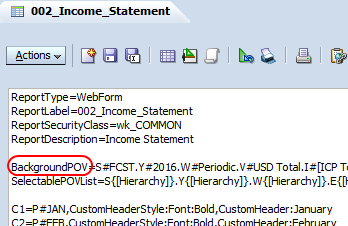
There is a graphical interface for designing and editing forms.  This gives a friendly way of representing the script that is used to define the dimensions, members, and format of the form.  From the editor there is a button on the Actions bar that lets you edit the script directly.


Notice the line that starts with BackgroundPOV=.  This defines the default POV for the form.  So while one option is to use the GUI tools to update the POV, it is often quicker to edit the script and save the update.


Because the form is defined in a script, the script is what gets saved when we do LCM exports.  The relative path is ..\resource\Forms\Web Forms\.  Beneath that are the folders and forms as defined in workspace.  Each form is saved in an .xml file, but the content of the .xml file is primarily the script that we see in workspace.


Our strategy is to export the forms, edit the .xml files to update the year in the BackgroundPOV, then use LCM import the updated forms.

Solution

The key is generating a script to automate the change.  Powershell makes it easy to traverse a folder and subfolders for documents.  In this case the filter is easy because the forms all reside beneath a single parent folder and are all defined in .xml files.

We open each file in turn and look for the BackgroundPOV line.  The POV is defined using the standard HFM scripting style of <dimension>#<value> with periods separating the dimension definitions.  So we search for the string .Y# then use a simple substring to find the year value and replace it with the new value.

The sample script is:

# PoSh script to update POV in the web forms in HFM application with the new year
#    We use the LCM export of the forms for the application.  The exports include the
#    report script in the .xml files.  We search for the BackgroundPOV line and replace
#    the Y# value with the new year.
#
#    I'm assuming that the current year is correct and so we increment the year.
#    We could use a similar techinique and replace the year with a static value
#

# All of the folders that have the web data forms that have to be updated
[array]$Dirs = #Folder 1, `
            #Folder 2, `
               # ...      `
            #Last folder

foreach ($D in $Dirs) {

    # Get all of the .xml files in the current web form folder
    #
    $Files = Get-ChildItem -path $D -filter '*.xml'
 
    foreach ($FN in $Files) {
        $FN

        # Read and loop through the .xml file
        #
        $Script = Get-Content $FN.FullName
        for ($i=0; $i -le $Script.Length; $i++) {

            # Found the line we need to change
            #
            if ($Script[$i] -match 'BackgroundPOV') {
                $L = $Script[$i]

                # Get the 4 digit year.  POV is standard nomencalture so search for .Y#
                #
                $Year = $L.Substring($L.IndexOf('.Y#')+3,4)

                # Increment the year.  Note we convert to integer then back to string
                #
                [string]$New = [int]$Year + 1

                # Replace the year in the script line
                #
                $Script[$i] = $L.Replace($Year,$New)

                # There is only one line per file so exit the for loop
                #
                $i = $Script.length
            }
        }

        # Overwrite the old file with the new
        #
        $Script | out-file $FN.FullName
    }
}

Here are some things to note about the script.  I force the list of folders into an array even if I need just one folder; this gives the script flexibility to use any number of folders.  I hard code the path for the forms but that could be replaced with a prompt or command line parameter.  I assume that the current year in the form is correct and increment the value, but you can replace that with a static string if you need to updated forms with a specific value.  Also, I did not use the -Recurse option in the Get-ChildItem commandlet, but this can be used to traverse all subfolders in the -Path to process all of the .xml files in all directories.  And it is good to have a backup, so before you run the script either do two LCM exports or work from a copy so you can return to a known good state if things go belly up.

I assume you know how to export and import using LCM so I don't describe that process.  My goal is detailing the strategy for doing the mass update and showing the sample script that you can customize for your needs.  The text files generated by LCM lend themselves to scripting techniques like this if you have similar issues with other products.  And while I'm personally a fan of PowerShell for scripted solutions, there are other scripting tools available if your comforts lie elsewhere.