August 3, 2016

The Case of the Missing Applications

Patching Oracle EPM products can be challenging.  Things have gotten better with newer versions but there are still wrinkles that have to be ironed out on occasion.

https://ww.deluxe.com/blog/using-facebook-insights-small-business/

In this case we were applying the latest Patch Set Updates (PSU) for our Financial Reporting/Reporting and Analysis/BIPlus applications.  One of the wrinkles with PSUs, particularly those for BIPlus, is that you have to redeploy the application with the EPM System Configurator/Config Tool.  One of the other wrinkles with EPM products is that they are frequently bolted on to the rest of the suite and will go by many names when you try to research a problem.

After successfully running OPatch to update the product I ran configtool.bat.  But the list of available products to configure only showed the basic Foundation Services.  None of the other products, including the Reporting and Analysis Framework that we just patched were available.

Fortunately this was in our QA environment so there was no chance of causing a production outage.  Also fortunately, and oddly, the services were still visible in the Windows Services console.  And the OPatch for the PSU completed correctly which confirmed that the required file structure was still in place.

Perhaps the other products needed to be reinstalled?  But when I ran the InstallTool.cmd the only products available to re-install were the same Hyperion Foundation products that we saw in ConfigTool.

Research

I opened an SR with Oracle to help me determine the cause.  We ran the usual diagnostics and checked files related to inventory such as the HYPERION_HOME/inventory/contentsXML/comps.xml and EPM_INSTANCE/config/foundation/11.1.2.0/reg.properties files.  But that didn't show us anything useful.

The Oracle SE hit on the idea of using ProcMon to watch what files were being processed.  This pointed us to the HYPERION_HOME/.oracle.products file as the file referenced during configuration.  After comparing the .oracle.products file to our production server we confirmed that the file in our QA environment got damaged somewhere along the line.

Solution

The .oracle.products file isn't used for normal operations.  It is just referenced and updated during installation and configuration.  So the file could be damaged for months or years and you would never notice until you run the configurator or try to install or uninstall products.

One solution was to backup the existing .oracle.products file, remove all of the <InstallabelItem> and <products> nodes from the XML file, then run InstallTool and reinstall the required products.  Because this would overwrite all of the existing .ear and .jar files all previous patches would also need to be re-applied.

While this is a reasonable solution it involves several manual steps which can be prone to error.  And it can be time consuming to reapply all of the patches.

The other solution was simple and brilliantly elegant.  Just take a clean server and run InstallTool to install the products that are on the damaged server, then copy the .oracle.products file from the temporary server to the damaged server.

I used VirtualBox to quickly spin up a virtual machine to handle this task.  Note that all I needed to do is install the products to generate the .oracle.products file.  There was no need to worry about connecting to an existing WebLogic instance, or accessing databases, or any of the other configuration tasks.  Plus I already had a server image I could deploy in VirtualBox so I completed the whole process in an hour.

Once the .oracle.properties file was copied I was able to successfully complete the redeploy and confirm that the PSU fixed the issue we were facing.

Takeaways:
1. ProcMon is a useful tool for finding missing or damaged files and registry keys
2. VMs are useful for troubleshooting and problem resolution.  Everybody gives away hypervisors so be sure to keep something handy for when you need it.
3. The .oracle.products file is used by InstallTool and ConfigTool to determine what is installed and configurable on the server.

May 23, 2016

Auditing Financial Reports

You know how it goes.  Somebody starts a project and then forgets about it.  Or there are multiple versions of a report that were made for various purposes.  Or a report was critical at one point but eventually interest waned and is now unused.  Whatever the cause you wind up with a bunch of reports, books, and batches that are never used.  But you can't tell which ones aren't used if you don't have an audit trail.

There other uses for an audit trail beyond finding which reports are used.  Maybe you need to know who runs the reports, or how frequently reports are generated, or if reports are run at a certain times so you can plan maintenance.  Or maybe you're just curious.


Oracle docs 1353965.1 and 1947774.1 show the FRLogging.log file holds the audit data of Financial Reporting objects.  The FRLogging.log contains a bunch of information including start and stop times for reports and books, steps taken to produce output, queries used to pull from the data source, and other details.

The Problem

As noted in the 1947774.1 document you configure logging in the  MIDDLEWARE_HOME/user_projects/domains/EPM_System/config/fmwconfig/servers/FinancialReporting0/logging.xml file.  By default BI+ limits the log file size to 1Mb.  When the log reaches that limit the FRLogging.log file is renamed by appending a sequential number to the file name and a new log file is created.  By default only 50Mb of log files are retained.

This is good news because BI+ won't create an infinite number of logs which could fill your drive and crash your system.  But this is bad news because you can blow through 50Mb of logging in an afternoon of running multiple report batches during month end close, thus losing historical data.

Also the logs contain a lot of information that isn't interesting from an audit stand point.  We just want lines that show the name of the report as well as the time it ran and the user who ran it.

We have to parse the FRLogging logs to get just the summary information.  But we can't process the FRLogging.log file directly because it is held open by the Financial Reporting services and new records are constantly being appended.

The Solution

Windows has a .NET class called FileSystemWatcher.  This will monitor a file or folder and take action when file system events occur such as creating, deleting, or renaming a file.  We can use this feature to monitor the FRLogging.log file.  When it gets renamed we find the newest numbered file in the folder and process that.  This allows us to process a file that is not in use and prevents us from processing a log file more than once.

There are several lines in the FRLogging.log that are useful for audits.  The START: record gets added when the job starts and the JOB: record gives a completion summary of the job including the total time it took the job to complete.  In between these are one or more REPORT: records.  If you run just the report you get one REPORT: record but for a book or batch you will get multiple records, one for each report generated.


Each of those lines contain the string "start:" (note the colon in the string).  For the JOB: and REPORT: records this string identifies the start time of the event while for the START: records the string is the record identifier.  No other records contain this string so this is a sure way to parse the log for the audit data.

To put this all together we need a script that will run FileSystemWatcher, wait for the FRLogging.log file to get renamed, find the latest numbered file, do a case-insensitive search for lines with the string "start:", and drop those lines into a file we can retain for as long as we need.  This PowerShell script accomplishes those tasks:

# PoSh script to keep a record of all report usage
#   Use the FileSystemWatcher to monitor the FRLogging.log.  When the file gets renamed
#  we pull the job information from the most recent file and save it to an audit log
#
$Folder = `
"D:\Oracle\Middleware\user_projects\domains\EPMSystem\servers\FinancialReporting0\logs"
$File   = "FRLogging.log" # File to monitor with FileSystemWatcher
$Filter = "FRLogging*.log" # Filter to find the most recently renamed file
$Output = "D:\FRAudit.log" # Running audit trail

# Configure the FileSystemWatcher.  Create the watcher object, then define the
# folder and file to watch
#
$watcher        = New-Object System.IO.FileSystemWatcher
$watcher.Path   = $Folder
$watcher.Filter = $File

# Define the action to take when the file we are watching gets renamed
#
$renamed = Register-ObjectEvent $watcher "Renamed" -Action {

  # Get the FullName of the most recent numbered FRLogging*.log file
  $LogFile = (Get-ChildItem $Folder $Filter | Sort LastWriteTime -desc)[1].FullName

  # Do a case insensitive search for all lines that contain the string "start:"
  $NewRecs = get-content $LogFile | where {$_ -match "start:"}

  # And append those lines to our running audit trail
  $NewRecs | out-file $Output -append
}

If you use this script you will need to change the value for the $Folder variable to match your environment.  The value of the $Output variable is arbitrary but must be the full path to a file for your running audit trail.  The tricky part of the script is the line where we find the most recent log file.  Get-ChildItem returns an array of files matching the filter in the folder.  We sort that array by LastWriteTime in reverse order and take the second element of the array (index [1]) to get the latest numbered file since the first element (array index [0]) is the FRLogging.log file.

But how do we make sure the script stays running to continuously monitor the FRLogging.log file?

An easy solution is to use Windows Task Scheduler to create a task that runs at system startup.  You can also start the task manually when you first create it or if you adjust it later.  Since there is nothing to terminate the script the task keeps running in the background.  We basically get a service that starts automatically at every reboot.


Our new audit log is just a raw dump of the the useful lines from the FRLogging.log file.  You will still need to parse that data to isolate the information of interest to you.  (I have another PowerShell script to do that and will send it to you if you are interested.)  But the key point is that we can leverage the transient information Oracle gives us and generate a persistent audit trail.  And we can do it for free using built-in tools and with minimal overhead.

April 21, 2016

Permanent temporary files

We update the metadata for our HFM applications at least once per month.  Before updating the shared dimension library and deploying the production application we test all of the changes in our development environment.

During a recent test the deployment in development failed.  Usually a failure is during the deployment phase due to some misconfiguration in the new dimension members.  In this case the deployment failed during the initial export with the error message:

Detail : An error was encountered while executing the Application Export:  An error was encountered during export: The file exists.

Oracle Doc ID 1639083.1 shows the same error for Planning applications.  Because Planning and HFM both use the EPMA dimension and application libraries you can often extrapolate from the Planning solutions to solve HFM problems.

The article says the <SystemDrive>:\Windows\temp folder is full and the solution is to delete files from that directory.  But my C:\ drive wasn't full and there weren't many files in the \windows\temp directory.

Troubleshooting

According to the Oracle doc we were running out of file names.  But where?

The deployment is performed by EPMA and it fails before HFM starts its processing.  (Years ago an Oracle support engineer told me that during a deployment all the processing up to 20% is EPMA and after that it is HFM.  At any rate we don't get past the export so I know definitively that the problem was with EPMA.)

SysInternals has a bunch of powerful utilities for Windows systems.  I've been using these utilities since the WindowsNT days.  The author of the utilities, Mark Russinovich, was eventually hired as a technical fellow at Microsoft and is now the CTO of Azure.  He's one of the smartest guys you can follow and he's an engaging and articulate speaker if you see him give a presentation.

In this case I had to monitor the processes on the EPMA server to see what caused the failure.  From live.sysinternals.com I downloaded ProcMon and ran it on the EPMA server.  ProcMon will monitor everything on the server so you need to apply filters to isolate the information you want.  A handy technique is to let it capture for a few seconds, then stop the monitor, right-click any processes you don't care about such as explorer.exe, svchost.exe, your anti-virus software, etc and select Exclude.  This adds the exclusions to the current filter.  Repeat until you only have the handful of processes of interest, in this case anything related to EPMA.  Then clear the log, start the capture, and redeploy.


Once the deployment failed I stopped the capture and saved the results.  ProcMon captures access to the file system and registry as well as network and process thread events, so I removed everything except file system requests.  I didn't have to scroll down very far to see thousands of events from EPMA_Server.exe with a result of NAME COLLISION.  These are all in the AppData\Local\Temp directory of the user account under which the services run.


The files are named tmpXXXX.tmp where XXXX is appears to be a random set of 4 hex digits.  Some of these files are created during application deployment.  We do a nightly LCM export of EPMA for backup purposes and which also creates .tmp files.  Some of the .tmp files are XML properties of the applications and some are binary files.  Since this is our dev environment and we have many test applications, do regular deployments of HFM applications, and export EPMA nightly we ran out of the 65,535 possible names for the .tmp files.

Solution

As the Oracle doc implies, we just delete the .tmp files.  They are, after all, just temporary files in a temp directory.  Why Oracle doesn't delete them automatically or overwrite existing files instead of throwing an error is a topic for philosophers and software engineers to resolve.

Another location where files accumulate is \Oracle\Middleware\user_projects\epmsystem\tmp.  That folder holds temp files for shared dimension library updates, diagnostic framework, and web logic, among others.  Beneath this \tmp folder is a folder named EPMA that holds temp XML files with all properties of all dimensions in redeployed applications as well as temp ADS files created during LCM exports from EPMA.  Also beneath the \tmp folder is a folder oracle\tmp which has subfolders holding log files generated during HFM data syncs.

For us that issue came to light since we not only do nightly LCM exports of EPMA, we also have reporting applications that are updated nightly.  We use HFM taskflows to update the metadata, redeploy the applications, and run datasyncs to load data.  Because the .xml files generated during the redeploy can be large and we went through many rounds of testing, the data drive eventually filled to capacity which killed all activity on our EPMA server.

Our solution is regular maintenance to delete temp files in both the AppData\Local\Temp and the epmsystem\tmp folders on servers running the Hyperion EPMA Server service.  This task is easy enough to complete manually that I have not created an automated process for it.

But it is curious that Oracle doesn't automatically delete, or provide facilities for automatically deleting, these temporary files.  If you know of anything built into the products to address these temporary files please share that information in the comments below.

March 24, 2016

Automating HFM form updates

We have lots of different forms in our HFM applications.  Many of these are used for reporting and analysis on various aspects of the income statement, balance sheet, and cash flow statements.  We also have a variety of supplemental forms for tax, human resources, and other business purposes.

http://xkcd.com/1566/

For these forms the year on the point of view should be the current fiscal year.  Although this can be adjusted by the users it is more convenient if the default POV is the current year.

We have over 100 such forms.  After we complete year-end close and roll forward to the next fiscal year all of these forms need to be adjusted to update the default POV for the new year.  It is a tedious task to do this by hand.

Strategy

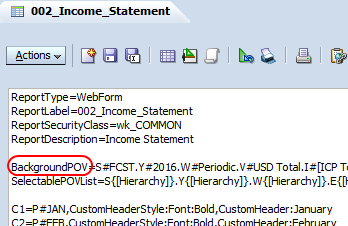
There is a graphical interface for designing and editing forms.  This gives a friendly way of representing the script that is used to define the dimensions, members, and format of the form.  From the editor there is a button on the Actions bar that lets you edit the script directly.


Notice the line that starts with BackgroundPOV=.  This defines the default POV for the form.  So while one option is to use the GUI tools to update the POV, it is often quicker to edit the script and save the update.


Because the form is defined in a script, the script is what gets saved when we do LCM exports.  The relative path is ..\resource\Forms\Web Forms\.  Beneath that are the folders and forms as defined in workspace.  Each form is saved in an .xml file, but the content of the .xml file is primarily the script that we see in workspace.


Our strategy is to export the forms, edit the .xml files to update the year in the BackgroundPOV, then use LCM import the updated forms.

Solution

The key is generating a script to automate the change.  Powershell makes it easy to traverse a folder and subfolders for documents.  In this case the filter is easy because the forms all reside beneath a single parent folder and are all defined in .xml files.

We open each file in turn and look for the BackgroundPOV line.  The POV is defined using the standard HFM scripting style of <dimension>#<value> with periods separating the dimension definitions.  So we search for the string .Y# then use a simple substring to find the year value and replace it with the new value.

The sample script is:

# PoSh script to update POV in the web forms in HFM application with the new year
#    We use the LCM export of the forms for the application.  The exports include the
#    report script in the .xml files.  We search for the BackgroundPOV line and replace
#    the Y# value with the new year.
#
#    I'm assuming that the current year is correct and so we increment the year.
#    We could use a similar techinique and replace the year with a static value
#

# All of the folders that have the web data forms that have to be updated
[array]$Dirs = #Folder 1, `
            #Folder 2, `
               # ...      `
            #Last folder

foreach ($D in $Dirs) {

    # Get all of the .xml files in the current web form folder
    #
    $Files = Get-ChildItem -path $D -filter '*.xml'
 
    foreach ($FN in $Files) {
        $FN

        # Read and loop through the .xml file
        #
        $Script = Get-Content $FN.FullName
        for ($i=0; $i -le $Script.Length; $i++) {

            # Found the line we need to change
            #
            if ($Script[$i] -match 'BackgroundPOV') {
                $L = $Script[$i]

                # Get the 4 digit year.  POV is standard nomencalture so search for .Y#
                #
                $Year = $L.Substring($L.IndexOf('.Y#')+3,4)

                # Increment the year.  Note we convert to integer then back to string
                #
                [string]$New = [int]$Year + 1

                # Replace the year in the script line
                #
                $Script[$i] = $L.Replace($Year,$New)

                # There is only one line per file so exit the for loop
                #
                $i = $Script.length
            }
        }

        # Overwrite the old file with the new
        #
        $Script | out-file $FN.FullName
    }
}

Here are some things to note about the script.  I force the list of folders into an array even if I need just one folder; this gives the script flexibility to use any number of folders.  I hard code the path for the forms but that could be replaced with a prompt or command line parameter.  I assume that the current year in the form is correct and increment the value, but you can replace that with a static string if you need to updated forms with a specific value.  Also, I did not use the -Recurse option in the Get-ChildItem commandlet, but this can be used to traverse all subfolders in the -Path to process all of the .xml files in all directories.  And it is good to have a backup, so before you run the script either do two LCM exports or work from a copy so you can return to a known good state if things go belly up.

I assume you know how to export and import using LCM so I don't describe that process.  My goal is detailing the strategy for doing the mass update and showing the sample script that you can customize for your needs.  The text files generated by LCM lend themselves to scripting techniques like this if you have similar issues with other products.  And while I'm personally a fan of PowerShell for scripted solutions, there are other scripting tools available if your comforts lie elsewhere.

March 15, 2016

SmartView and XML

Our user reported the following error while using SmartView:

XML Load Error: Invalid xml declaration
Fortunately this happened after all data had been submitted for month-end close, so I had some time to research the problem.  Unfortunately it happened on Super Bowl Sunday, so there was still a time crunch because nachos wait for no man.  To make the situation weirder the user had been working fine when Excel crashed and after restarting Excel she couldn't log back in.

The error says it is a problem with XML so I started there.  SmartView keeps a few .xml files in the cfg folder.  Properties.xml is just a template for the proprties.xml file that lives in the user profile at AppData\Roaming\Oracle\SmartView.  That file holds the default URL for connecting to the SmartView provider website and the list of previously used URLs.  We tried replacing the user's properties.xml file with the default .xml we distribute to force users to connect to the correct URL.  That didn't help.

SmartView also uses some .xml files on the server end in the folder Oracle\Middleware\EPMSystem11R1\products\FinancialManagement\Web\HFMOfficeProvider\TaskList_Config.  I compared those against our development environment and the files checked out.

I searched the Oracle knowledge base but there isn't much information there.  I found one article which indicated this might be a problem with the user provisioning.  I removed the user account from all of the groups, saved it, then added it back to the groups.  But she got the same error when logging in from SmartView.

We use Active Directory domain accounts for access to Hyperion and Essbase so users don't have to remember or sync multiple passwords for multiple accounts.  In desperation we provisioned a native directory account and gave it the same access as the problem Active Directory account.  This provided a temporary work around but what about a permanent solution?

Oracle support provided the answer.  There is a table in the HFM database name <appname>_USERPARMS which holds parameters for each user, where <appname> is the name of the HFM application..  The parameters are stored as hex blobs and some of those blobs are in XML format.  If you see any entry starting with 0x3C that could be the start of an XML entry since 3C is the hex value for the < character which is the first character of any XML string.  The speculation is that when Excel crashed it caused one of these entries to be corrupted.


This also explains why creating a native directory account worked around the issue.  The native account is recognized as a different account and had a different value in the Username field.

Running the command:

DELETE FROM <appname>_USERPARAMS WHERE Username LIKE '<youruser>%'

removed all of the entries for the problem user, replacing <appname> with the name of the HFM application and <youruser> with the username having problems.  The entries got reset to their defaults on the next logon and resolved the user's login issue from SmartView.

Like the EAL and IIS issue, there are other errors that can be resolved with the same technique.  Doc ID 1584266.1 shows that deleting the entries for a user will resolve the error:
Unknown Error in HFMProviderObject reference not set to an instance of an object.

Doc ID 1533030.1 shows that deleting all entries for the user or some specific parameters will resolve the error:
The parameter is incorrect. Error Reference Number: {319B0CB1-3B2D-4963-BB8F-025D2440A15D}

Doc ID 1371461.1 shows that deleting specific keys will resolve the error:
There are no rows to display for the current grid definition

Doc ID 1515682.1 shows that deleting specific keys will resolve the error:
An error has occurred. Please contact your administrator.
Error Number:13
Error Description:Type mismatch
Error Source:Microsoft VBScript runtime error
Page On which Error Occurred:/hfm/mbrsel/mbrsel.asp

All of these problems involve some sort of corruption of one or more of the parameters held in the USERPARMS table; the solution is to remove the offending parameters and let HFM recreate them with the default values.  If someone was really ambitious they could translate the blob from hex to ASCII, determine what was missing, correct the string, translate it back into a hex blob, and update the BLOBData field for that ParameterKey.  But I'm not that ambitious and the quickest path is the supported solution of deleting the records and getting on with your life.